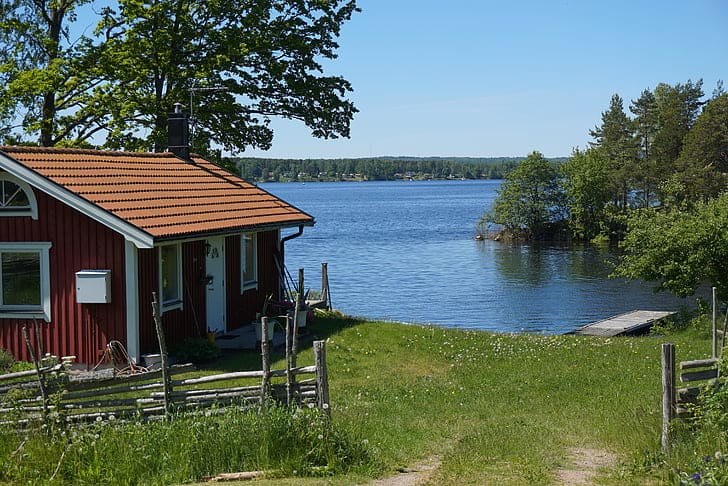
Starlink for Cottages Canada: Seasonal Plans, Setup & Pause
Updated September 2026 · Canadian cottage guide
Starlink can bring useful internet to a cottage that has weak cellular service, no cable, or slow fixed wireless. The harder decision is choosing the right plan for a fixed, portable, or seasonal setup and finding enough clear sky around the property.
Quick answer
Start with Residential when the Starlink kit will stay at one cottage and you use the property regularly. It provides unlimited data and suits a permanent roof or pole mount.
Start with Roam when the kit travels between cottages, campsites, an RV, or your primary home. For a cottage that closes in winter, compare Standby Mode with cancelling service, but check your exact account and hardware before depending on either option.
Our cottage experience
At a cottage near Lac du Bonnet, Manitoba, we had a strong Starlink connection even though large trees surrounded the property. That does not mean every wooded lot will work. The exact dish view and obstruction scan matter more than simply counting trees.
For current prices, see the Starlink plans and pricing guide. The Starlink Canada review covers the full service. If your existing connection is slow, drops out, or reports obstructions, use the Starlink Problem Finder.
Prices checked September 4, 2026
Canadian Residential plans currently cost $75, $115, or $150 per month. Roam plans cost $75, $110, or $200. Standby Mode is about $15 per month for many Canadian accounts and provides up to 500 Kbps download and upload. Promotional offers and select rental kits may be excluded, so confirm the option shown in your account.
Can you use Starlink at home and the cottage?
Yes, but one dish cannot serve both properties at the same time. The best setup depends on whether both places need to stay online and how often you want to move the equipment.
| Situation | Best starting point | Why |
|---|---|---|
| You only need Starlink at the cottage | Residential at the cottage address | Best for one fixed property with regular use and a permanent mount. |
| You need internet at home and the cottage at the same time | Two active service lines | One dish cannot serve two places at once. Each location needs its own equipment and active service. |
| You bring Starlink to different cottages or campsites | Roam with Mini or Standard | Roam is designed for portable use and changing locations. |
| You only visit a few weekends each year | Roam 100GB or Roam 300GB | You can choose a data allowance that fits occasional trips, then use Standby or cancel. |
| You already want Residential Max at home | Check the included Mini travel offer | Eligible customers can receive a Mini rental and a 50% discount on Roam service. |
Residential is tied to its service address
You can change the registered address when service is available at the new location, but Residential is designed for fixed use. Choose Roam when the kit will move regularly.
Find the best Starlink setup for your cottage
Answer three questions to narrow the options. The result is a starting point, not a substitute for checking the plans offered at the cottage address.
Best Starlink setup by cottage use
Most cottage setups fall into one of these five patterns. Start with the closest match, then confirm availability and account-specific offers.
| Cottage use | Best setup to check first | Why it works |
|---|---|---|
| Year-round or nearly year-round | Residential at the cottage address | Simple, fixed, unlimited data, and suited to a permanent roof or pole mount. |
| Spring to fall cottage season | Residential with Standby if eligible | Good when you want a permanent setup and a lower winter cost. |
| Weekends or a few trips each year | Roam 100GB or Roam 300GB | Flexible when you do not need cottage internet every month. |
| Cottage plus RV, camping, or multiple properties | Mini or Standard Kit on Roam | Designed for portable use and changing locations where Starlink is authorized. |
| Home and cottage both need service | Two service lines, or the Residential Max Mini offer | Each place needs active equipment when both must be online at once. |
A quick way to choose
For one fixed cottage used often, check Residential first. If the kit moves, check Roam. If winter cost is the main concern, check Standby eligibility before buying the hardware.
Seasonal service and Standby Mode
Starlink does not sell a special summer cottage plan. You can keep full service active, move an eligible service line to Standby Mode, or cancel and reactivate later.
| Option | Best for | Main caution |
|---|---|---|
| Keep service active | Use year-round, cameras, remote work, and smart devices | You pay the full plan price during empty months. |
| Use Standby Mode | Seasonal cottages with an eligible plan and kit | Speeds are limited to 500 Kbps each way. Promotional offers and select rental kits may be excluded. |
| Cancel and reactivate | Very occasional visits | Reactivation can depend on account status, plan rules, and local capacity. |
A rental changes the decision
Starlink rents Residential hardware for $10 per month in select markets. Rental customers cannot pause service and must return the equipment after cancelling. A purchased kit may be more flexible for a cottage that closes every winter.
Standby provides unlimited low-speed data at up to 500 Kbps each way. It also lets you reach the account portal and reactivate from a dead zone. It does not reserve Residential capacity or erase a future demand surcharge. If you resume mid-cycle, Starlink charges the plan on a prorated basis.
Seasonal cottage cost calculator
Use this for a rough annual comparison. Hardware, shipping, taxes, mounts, installation, promotions, and possible demand surcharges are not included.
Is Roam 100GB enough for a cottage weekend?
Roam 100GB costs $75 per month in Canada. Starlink describes the allowance as roughly one week of typical use, which can suit a short cottage trip. A family streaming every evening can use it much faster.
After 100GB, the connection continues with unlimited low-speed data rather than shutting off. That may cover simple messages, but it is not meant for normal streaming or a busy household. Roam 300GB costs $110 per month, while Roam Unlimited costs $200.
| Use case | 100GB cottage fit |
|---|---|
| One person, light browsing, email, maps, messages | Usually fine |
| Couple with some streaming | Can work if you watch usage |
| Family streaming at night | Risky |
| Remote work and video calls | Possible, but 300GB or Unlimited gives you more room |
| Cameras uploading clips all week | Watch carefully or use a larger plan |
Trees and obstructions
Trees are often the biggest problem at a cottage. Lakefront lots and Canadian Shield properties can have very little open sky, but large trees do not automatically make Starlink unusable.
Our Lac du Bonnet cottage had large trees close to the building and Starlink still worked well. A similar-looking property could perform differently if branches cross the part of the sky the dish needs.
Check the view before buying
Use Check for Obstructions in the Starlink app from the planned dish height. Scan the roofline, deck, yard, shoreline, dock, and possible pole locations. A clear-looking driveway is not enough.
Starlink advertises a 30-day trial on Canadian plans. Keep the box and packaging until the setup works properly, and read the return terms for your hardware offer. Service billing normally starts when you activate the kit or seven days after delivery, whichever happens first.
Common cottage fixes
- Roof peak mount: Often the easiest way to get above nearby trees.
- Pole mount: Useful when the cottage roof remains below nearby branches.
- Dock or boathouse location: Sometimes the clearest sky is closer to the water, but cable distance and weather protection matter.
- Selective trimming: A few branches can make a big difference, but use the app first so you know which direction matters.
- Professional install: Worth considering for steep roofs, tall poles, long cable runs, or properties with several buildings.
Summer foliage matters
A spot that looks clear in March may be partly blocked by July leaves. Test during the cottage season when possible, or leave extra space around the dish's field of view.
Already installed and having problems?
Use the Starlink Problem Finder before buying another mount, mesh system, cable, or power accessory. It helps separate obstructions from WiFi range, weather, congestion, power, and device problems.
Winter and power tips
A winter cottage still needs reliable power and a sensible mount. The current Standard dish is rated from -30°C to 50°C and can melt up to 40 mm of snow per hour. Starlink Mini has the same operating-temperature range and can melt up to 25 mm per hour.
- Power must stay on: Starlink will not stay online, update, or melt snow if the cottage power is shut off.
- Plan for the power draw: The Standard dish averages about 75 to 100 watts. Mini averages about 25 to 40 watts. Snow Melt can increase consumption.
- Keep the router dry: The router should be indoors or in a dry protected space, not exposed to condensation or leaks.
- Do not rely on Standby for everything: Standby is very slow. Test it before depending on cameras, thermostats, or alarms.
- Spring return: Clear snow, ice, leaves, and debris before judging speed or stability.
Cottage security note
If cameras, leak sensors, or smart thermostats must stay online all winter, keeping a full plan active may be safer than Standby. A slow backup connection is not the same as normal internet.
Cottage cameras, leak sensors, and smart thermostats
Cameras, leak sensors, smart thermostats, alarms, and remote locks can justify year-round cottage internet. They also make power and connection reliability more important than the lowest monthly price.
Do not assume 500 Kbps Standby service will handle every device. A small alert may work while camera clips or remote viewing struggle. Test each device before relying on it for security, leaks, freezing, or winter monitoring.
| Device | Best Starlink approach | Watch out for |
|---|---|---|
| Security cameras | Full active plan if you need reliable clips and remote viewing | Video uploads can use more data than expected. |
| Leak sensors | May work on low data if the connection stays online | Test alerts before leaving for winter. |
| Smart thermostat | Usually light data use | Still needs power, router uptime, and stable internet. |
| Alarm system | Ask the alarm provider what connection type they support | Do not rely on Starlink alone for emergency monitoring without testing. |
Covering several buildings on a cottage property
Cottage WiFi is often harder than WiFi in a city home because buildings are spread out. The main cottage, bunkie, boathouse, garage, sauna, and workshop may each need coverage.
| Coverage need | Best option | Watch out for |
|---|---|---|
| Main cottage only | Starlink router in a central spot | Logs, stone, metal roofs, and thick walls can reduce range. |
| Nearby rooms or deck | Starlink mesh node or compatible mesh | Mesh works best when nodes are not too far apart. |
| Bunkie or boathouse | Outdoor Ethernet or fibre to an access point | Wireless mesh may struggle through trees, distance, and walls. |
| Large property | Access points with wired backhaul | Usually worth hiring an installer if trenching or roof work is involved. |
For help with roof mounts, poles, cable runs, or outbuilding WiFi, see the Starlink installers in Canada guide.
Island cottages, campsites, and properties without an address
Starlink can work at island cottages, boat-access cabins, hunt camps, seasonal campsites, and rural lots without a normal street address. Availability is only the first check. You also need power, a safe mount, weather protection, and WiFi where people actually use it.
- Use the map or pin option: If the property does not have a normal civic address, check availability as close to the real location as possible.
- Plan power first: A cottage without grid power needs enough battery, solar, generator, or inverter capacity for the dish and router. Before choosing a portable battery, calculate how long a power station will run Starlink, including Mini and winter conditions.
- Think about theft: A portable kit left on a dock, deck, or shoreline may need to be removed when you leave.
- Check cable distance: The clearest sky may be by the dock or shoreline, but the router still needs to reach the cottage.
- Test before a long weekend: Do not make your first setup attempt after dark on the Friday of a holiday weekend.
Frequently asked questions
Can I use one Starlink dish at both my home and cottage?
Yes, if you move the kit and do not need both places online at the same time. Roam is designed for equipment that travels. If both locations need service simultaneously, each needs active equipment. Eligible Residential Max customers can also check the optional Mini rental and discounted Roam offer.
Is Starlink available at my cottage?
Check the exact location on Starlink's website. Availability, capacity, plans, and hardware offers can vary by address. When the property has no normal street address, place the service-location pin as close to the real cottage as possible during checkout.
Should I choose Residential or Roam for a cottage?
Choose Residential for one fixed cottage used regularly. Choose Roam when the kit moves between places or the cottage is used only occasionally. For seasonal use, compare the annual cost of Residential plus eligible Standby months with the Roam months you would actually purchase.
Can I pause Starlink during winter?
Eligible Residential, Roam, and Priority service lines can use Standby Mode. In Canada, it is about $15 per month for many accounts and provides unlimited low-speed data at up to 500 Kbps each way. Promotional offers and select rentals may be excluded, and Standby does not reserve Residential capacity.
Is Roam 100GB enough for a cottage weekend?
It can be enough for browsing, email, maps, messages, and some streaming. Several people watching video, downloading games, updating devices, or joining video calls can use the allowance quickly. Roam 300GB or Unlimited gives a family more room.
Will Starlink work with trees around the cottage?
It depends on the dish's view. Starlink worked well for us at a cottage near Lac du Bonnet even with large trees around the property. Another wooded lot may have branches in the wrong part of the sky. Run the app's obstruction scan from the planned mounting position.
Do I need a professional installer?
Not for a simple ground-level setup. Consider an installer for a steep roof, tall pole, boathouse cable run, outdoor access points, or a permanent installation that must survive winter weather.
Is there a data cap at the cottage?
Residential plans currently include unlimited data, although speed tiers and network demand still matter. Roam 100GB and 300GB include that amount of high-speed data and then continue at a much lower speed. Heavy streaming is a better match for Residential or Roam Unlimited.
The bottom line
Starlink can be a strong cottage option when cable, fixed wireless, and cellular service fall short. At the wooded cottage near Lac du Bonnet, it felt like normal, usable internet. The same result still depends on the view from your property.
Use Residential for one fixed cottage visited regularly. Use Roam when the kit travels or is needed only for occasional trips. Choose Residential Max at home only when its faster service already suits the household; the Mini offer should be a bonus, not the main reason to upgrade.
Before buying
Check the cottage address, scan for obstructions, confirm the monthly price, and review Standby eligibility. Read rental and promotional terms carefully because they can limit plan changes or pausing.
Official sources checked
- Starlink Canada service plans
- Starlink Standby Mode guidance
- Starlink rental-kit guidance
- Optional Mini Kit for Residential Max
- Standard hardware specifications
- Mini hardware specifications
Compare the current plans
Review Residential, Roam, Mini, and Max before deciding what to leave at the cottage.
Starlink plans and pricing guide